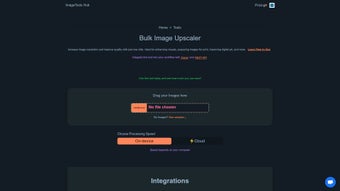

Download Automated Bulk Image Upscaler – AI Image Upscaling, Secure Bulk Enhancement
Overview
The Automated Bulk Image Upscaler is a cutting‑edge, web‑based application that leverages advanced artificial‑intelligence models to increase the resolution and visual fidelity of your photos, illustrations, and graphics in a single click. Designed with both hobbyists and professionals in mind, this subscription‑based tool removes the tedious, manual process of upscaling each file individually and replaces it with an intuitive bulk workflow. Whether you are preparing artwork for large‑format printing, enhancing product images for an e‑commerce catalog, or simply improving personal photos for social media, the Upscaler delivers crisp, high‑definition results while preserving original details and textures.
A standout aspect of the software is its privacy‑first architecture. Unlike many online upscalers that upload images to remote servers, the Automated Bulk Image Upscaler processes every file locally within the user’s browser. This means no image data ever leaves your device, eliminating any risk of unwanted exposure or data mining.
The tool also offers multiple AI model modes—such as “Standard,” “Artistic,” and “Sharp”—allowing you to tailor the enhancement process to the specific characteristics of your source material. The user interface is clean, responsive, and requires no prior technical expertise. Drag‑and‑drop functionality, progress bars, and real‑time previews keep the workflow transparent and efficient.
Subscription plans are flexible, offering monthly and annual options, and the service provides regular updates that incorporate the latest AI research, ensuring your upscaling results stay ahead of the curve. In short, this application combines powerful AI technology, bulk processing convenience, and iron‑clad privacy into a single, secure solution for anyone who needs faster, higher‑quality image enlargement. Beyond the core functionality, the Upscaler includes built‑in analytics that show processing time per image, estimated file size reductions, and quality metrics based on structural similarity indexes.
These insights help power users fine‑tune batch settings for optimal performance across diverse projects. The combination of speed, security, and intelligence makes this tool a compelling choice for creative teams, marketing departments, and independent designers alike.
Key Features & Capabilities
The Automated Bulk Image Upscaler packs a rich set of capabilities that address the most common challenges faced when working with large image collections. Its design philosophy centers on delivering professional‑grade results without sacrificing ease of use or data security. Below is a detailed look at the features that set this tool apart from traditional desktop upscalers and other cloud‑based services.
- Bulk Processing Engine – Upscale dozens or hundreds of images simultaneously with a single command, drastically reducing manual effort.
- AI‑Driven Upscaling Models – Choose from Standard, Artistic, Sharp, and Low‑Light modes to match the content of each image, ensuring optimal detail preservation.
- Local‑Only Processing – All calculations run in the browser; no image data is ever transmitted to external servers, guaranteeing privacy.
- Real‑Time Preview – View a side‑by‑side comparison of the original and upscaled version before committing, so you can adjust settings on the fly.
- Batch Export Options – Export results in JPEG, PNG, or WebP formats with customizable compression levels, making it easy to fit any workflow.
- Adaptive Resolution Scaling – Scale images up to 8× their original size while preserving edge sharpness, ideal for print‑ready graphics.
- Automatic Noise Reduction – Integrated denoising algorithms clean up grainy source files during upscaling, improving overall visual quality.
- Cross‑Platform Web App – Accessible from any modern browser on Windows, macOS, Linux, Android, or iOS devices, eliminating the need for OS‑specific installers.
- Subscription Flexibility – Monthly and annual plans; a 7‑day free trial is available for new users, allowing risk‑free evaluation.
- Continuous AI Updates – Regular model improvements delivered automatically, keeping the tool at the forefront of image enhancement technology.
- Built‑In Batch Analytics – Detailed reports on processing time, estimated file size changes, and quality scores help you optimize future batches.
- Custom Presets – Save and reuse configuration sets for recurring projects, streamlining repetitive workflows for teams.
Installation, Usage Instructions & Compatibility
Because the Automated Bulk Image Upscaler is a web‑based solution, there is no traditional “installation” process. Users simply navigate to the official website, create an account, and begin upscaling directly from the browser. This design eliminates the need for downloads, system‑level permissions, or administrative rights, making the tool instantly accessible on virtually any device.
Step‑by‑Step Setup
- Create an Account – Visit the landing page, click “Sign Up,” and provide a valid email address. Verify the account via the confirmation link.
- Select a Subscription – Choose either the monthly or annual plan. A 7‑day free trial is available for first‑time users.
- Access the Dashboard – After logging in, you are taken to the main dashboard where the bulk upload interface resides.
- Upload Images – Drag and drop files or use the “Select Files” button. The tool supports PNG, JPEG, and WebP formats up to 50 MB per file.
- Configure Settings – Choose your desired AI model, scaling factor (2×, 4×, 8×), and output format. Optional: enable “Auto‑Noise Reduction” or “Preserve EXIF data.”
- Start Upscaling – Click “Start Bulk Upscale.” A progress bar shows the status of each image, and a real‑time preview appears for the first file.
- Download Results – Once processing completes, select “Download All” to receive a ZIP archive of the enhanced images.
Compatibility – The application runs on any modern browser that supports WebAssembly and WebGL, including Chrome, Edge, Firefox, Safari, and Brave. It works seamlessly on Windows 10/11, macOS 10.15+ (Catalina and later), popular Linux distributions, as well as mobile browsers on Android 9+ and iOS 13+. Because all processing occurs client‑side, the only requirement is a reasonably powerful CPU/GPU to handle the AI inference; however, even mid‑range devices can achieve satisfactory performance for most bulk jobs.
Advanced Usage Tips
- Batch Segmentation – For extremely large collections (over 500 images), split the batch into smaller groups of 50‑100 files to avoid memory overload and keep the UI responsive.
- Hardware Acceleration – Enable hardware acceleration in your browser settings to allow the WebGL backend to utilize the GPU, which can cut processing time by up to 40 % on compatible machines.
- Preset Libraries – Save frequently used configurations as presets. This feature is especially useful for agencies that need to apply consistent scaling and compression settings across multiple client projects.
- Network Considerations – Although the tool processes locally, a stable internet connection is required for authentication and license verification. For users on limited bandwidth, enable “offline mode” after logging in to avoid unnecessary network calls.
- Quality Assurance – Use the built‑in analytics panel after each batch to compare structural similarity index (SSIM) scores. If the score drops below 0.90, consider lowering the scaling factor or enabling additional noise reduction.
Troubleshooting Tips
- Slow Performance – Close unnecessary tabs, clear browser cache, and ensure hardware acceleration is enabled in browser settings.
- Memory Limits – If you receive a “Memory exceeded” warning, split large batches into smaller groups (e.g., 20‑30 images per batch).
- Unsupported Formats – Convert TIFF or RAW files to JPEG/PNG before uploading, as the web app currently does not accept those formats.
- Browser Compatibility Issues – Update to the latest version of your preferred browser. Older versions may lack full WebAssembly support, resulting in degraded performance.
- License Verification Failures – Ensure your system clock is accurate. Incorrect date/time settings can cause authentication tokens to be rejected.
Pros, Cons & Frequently Asked Questions
Pros
- True local processing guarantees privacy and eliminates data‑leak risks.
- Bulk workflow saves hours compared to manual, single‑image upscaling.
- Multiple AI model modes provide flexibility for diverse visual content.
- Cross‑platform accessibility—no need for OS‑specific installers.
- Regular AI updates keep the technology state‑of‑the‑art.
- Built‑in analytics and preset management streamline repeat projects.
- Real‑time preview lets you fine‑tune settings before committing.
Cons
- Requires a stable internet connection for account authentication and subscription management.
- Performance depends heavily on client hardware; older machines may experience slower processing times.
- Subscription model may be less appealing to users who prefer a one‑time purchase.
- Limited to PNG, JPEG, and WebP input formats—no native RAW support.
- Large batches can trigger memory warnings on low‑end devices, requiring manual batch segmentation.
FAQ – Your Questions Answered
Is my image data really never uploaded to a server?
Yes. The Upscaler runs entirely within your browser using WebAssembly. All image tensors stay on your device, and no network request carries the raw image data.
Can I use the tool on a MacBook with Apple Silicon?
Absolutely. The web app is hardware‑agnostic and works on both Intel and Apple Silicon Macs, as long as you are using a recent version of Safari, Chrome, or Firefox.
What is the maximum scaling factor available?
The current AI models support up to 8× enlargement while preserving edge detail. For most print and digital uses, 4× or 6× is sufficient.
Do I need to install any browser extensions?
No extensions are required. The entire workflow runs on the official website, and all scripts are loaded securely via HTTPS.
Is there a free version or trial?
A 7‑day free trial is offered for new users, giving full access to all AI models and bulk processing capabilities. After the trial, a paid subscription is needed to continue using the service.
How does the tool handle very large image files (e.g., 100 MB RAW files)?
The Upscaler currently accepts PNG, JPEG, and WebP up to 50 MB per file. For larger or RAW files, convert them to a supported format before uploading. Future updates plan to add native RAW support.
Overall Verdict: The Automated Bulk Image Upscaler stands out in a crowded market thanks to its privacy‑first approach, flexible AI models, and genuinely bulk‑oriented workflow. While the subscription cost may deter occasional users, professionals who regularly upscale large image sets will find the time savings and quality boost well worth the investment.
Conclusion & Call to Action
In an era where visual content is king, having a reliable, secure, and efficient tool for image enhancement is no longer a luxury—it’s a necessity. The Automated Bulk Image Upscaler delivers precisely that, marrying state‑of‑the‑art AI upscaling with a privacy‑preserving, browser‑native experience. Whether you are a graphic designer polishing client deliverables, a photographer preparing prints for an exhibition, an e‑commerce manager optimizing product photos, or a marketer needing fast‑turnaround social media assets, this solution streamlines your workflow and elevates the final output without compromising data safety.
Ready to transform your image library in minutes? Download the Automated Bulk Image Upscaler now, start your free trial, and see how AI can instantly boost resolution, sharpness, and overall visual impact. Join the growing community of creators who trust a local‑first, AI‑powered solution for their bulk image needs, and stay ahead of the competition with faster, higher‑quality results.



.png)



